Jerry Nixon @Work: Sample

Jerry Nixon on Windows

Showing posts with label Sample. Show all posts

Tuesday, July 2, 2013

Walkthrough: Two-way binding inside a XAML User Control

imageUser controls are a great way couple logic and XAML in an encapsulated way. You can reuse a user control over and over and the logic is isolated from the general flow of your program. This article is not about creating a user control. This article is about binding to a user control.

Not a custom control

A user control contrasts with a custom control in that a custom control contains no XAML. Custom control can be (and is sometimes are required to be) templated (for example, a DataTemplate). Conversely, user controls cannot be templated as the XAML is embedded.

I wrote more about custom controls here: http://blog.jerrynixon.com/2013/01/walkthrough-custom-control-in-xaml-isnt.html

The simplest user control might look like this:

image

Monday, June 18, 2012

Easily upgrade from Bing’s V2 API to Bing’s Data Marketplace API

imageIt wasn’t that long ago when Bing released their REST API (http://api.bing.net) to fetch search information. It was simple and powerful, and I discussed it here. But not too long ago, Bing announced that the API will be migrating to the Azure Data Marketplace. As of August 1, 2012, the Marketplace version will be the ONLY option (it’s official).

The Bing Search API enables developers to embed and customize search results in applications or websites using XML or JSON. Add search functionality to a website, create unique consumer or enterprise apps, or develop new mash-ups.

Tuesday, February 14, 2012

WP7 Sample: An Accelerator-based App in 5 Minutes

As I have discussed in previous posts, there are lots of great sensors at the disposal of the Windows Phone application developer. One of them is the Accelerometer. The accelerometer measures the tilt of the device in both the X axis and Y axis.

You can read my previous article about the Accelerometer in more detail.

This can be quite useful for game scenarios. It can also be useful in productivity applications where the developer is using additional forms of user interaction to offer greater usability or innovation.

Tuesday, February 7, 2012

Mango Sample: Give your app the Finger!

image

My colleague Developer Evangelist, Sam Stokes, in California has written a compelling article on dragging items in Windows Phone.

But I have a problem with Sam’s approach

Maybe it’s because I have a problem with Sam – but probably not; he’s actually one of my top 90,000 people @ Microsoft. So, let’s talk about moving things in XAML!

Sam moves objects around by incrementing and decrementing an item’s top/left dependency property inside a Canvas.

Like this:

image

In the code above, Sam is using the ManipuationDelta event. This awesome event allows an individual UI element to track the movement of finger gestures on it. It simplifies the typical events that have to handle and track.

Wednesday, January 18, 2012

Mango Sample: The ApplicationBar’s Secret Blend?

imageA Windows Phone application is made up of a frame and pages. The Pages are made up of XAML that define the UI and the Application Bar. The Application Bar is made up of Application Bar Icon Buttons and Menu Items.

MSDN: The default Application Bar is a row of icon buttons and an ellipsis along the bottom of the phone’s screen. The user can click the ellipsis to display the labels for the icon buttons and menu items if they are enabled. The Application Bar has built-in animation that is displayed as the menu is shown or hidden. Also, the Application Bar automatically adjusts when the phone changes orientation. When the phone is in landscape orientation, the Application Bar appears on the side of the screen vertically. This maximizes the remaining space for page content.

Tuesday, January 10, 2012

Mango Sample: 3 Solutions to Formatting Problems

imageOne of the most powerful aspects of XAML is it’s rich and dynamic support for data binding.

MSDN: Data binding provides a simple way for Silverlight-based applications to display and interact with data. The way data is displayed is separated from the management of the data. A connection, or binding, between the UI and a data object allows data to flow between the two. When a binding is established and the data changes, the UI elements that are bound to the data can reflect changes automatically. Similarly, changes made by the user in a UI element can be reflected in the data object. For example, if the user edits the value in a TextBox, the underlying data value is automatically updated to reflect that change.

In XAML, data binding to an object’s property returns that property’s value. If the value is “Jerry” then you get “Jerry”.

In this article we will discuss how we can convert the value of a property to something else – something we need in our UI.

Data Binding

Let’s take a minute to look at simple data binding in XAML.

Wednesday, January 4, 2012

Mango Sample: 5 Must-Have Animations: Part 1

imageThis article is part 2 in a three part series.

  1. Part 1: Animation guidelines
  2. Part 2: Animation 1 – 4
  3. Part 3: Animation 5: Delete Item

Metro Principles

There are four Principles of Design for Windows Phone applications.

MSDN: Metro is the name of the new design language created for the Windows Phone 7 interface. When given the chance for a fresh start, the Windows Phone design team drew from many sources of inspiration to determine the guiding principles for the next generation phone interface.

  1. Typography
  2. Motion
  3. Content
  4. Honesty

Then, at //Build/ in 2011, Metro was re-elaborated for to transition developers toward Windows 8 Metro development. There are five Principles for Windows 8 Metro applications.

Mango Sample: 5 Must-Have Animations: Part 2

image_thumb[18]_thumbThis article is part 2 in a three part series.

  1. Part 1: Animation guidelines
  2. Part 2: Animation 1 – 4
  3. Part 3: Animation 5: Delete Item

Must Have Animations

Let’s consider my favorite animations in native Windows Phone animations. I believe that implementing these basic animations can turn your application on its head.

Animation 1: The Turnstile

Mango Sample: 5 Must-Have Animations: Part 3

image_thumb[18]_thumb_thumbThis article is part 2 in a three part series.

  1. Part 1: Animation guidelines
  2. Part 2: Animation 1 – 4
  3. Part 3: Animation 5: Delete Item

Animation 5: Delete Item

This is the last of my favorite animations. Delete Item is dramatic, but communicative and fast. It is also consistent.

We see this animation used in Email when a message is deleted. Without a doubt, this is my favorite of them all – because it is so visually communicative.

Wednesday, December 21, 2011

Mango Sample: Portable Assemblies

imageWindows Phone Applications are written in Silverlight (or XNA). Considerations for Silverlight impact Windows Phone developers.

The Problem

Many developers and organizations have existing libraries (assemblies) used in their desktop solutions. Object Oriented (OOP) Developers love to reuse existing assets. However, desktop assemblies may not be reused in Silverlight projects.  Only Silverlight assemblies may be referenced by Silverlight projects. 

To include a class library, for example, it must be compiled specifically for Silverlight. Because Silverlight is an abbreviation of the .Net Framework, a simple recompile is not always possible.

The Explanation

The .Net framework has two key ingredients. First, the Framework Class Library (FCL). This contains base classes, interfaces, value types, and most of the Framework’s namespaces. However, there’s also the Base Class Library (BLC). This contains the Framework’s fundamental data types and shared functions.

Monday, November 28, 2011

Mango Sample: Lock and Run

imageWhen a user is idle, their screen locks and your Windows Phone application is suspended. This might be undesired, like for:  a timer, certain games, and driving directions.

We have two properties to consider:

  1. The UserIdleDetectionMode property
  2. The ApplicationIdleDetectionMode property
Read this from MSDN:  For the best user experience in applications that target Windows Phone OS 7.1, Microsoft strongly recommends that you utilize the following new features while your application runs under lock, instead of setting theApplicationIdleDetectionMode property:
  • Fast Application Switching, a built-in feature of the OS that provides substantial improvements to state maintenance and performance when an application moves to and from the background.
  • Background agent features, as described in Multitasking for Windows Phone, for scenarios such as background transfers and background audio playback.

Speed up Resume?

I suspected suspending idle would speed up application resume. We only have one second to resume when reactivated. But, MSDN returns our attention to fast switching.

Wednesday, November 23, 2011

Mango Sample: Data Validation

imageWhoa! I am getting a lot of questions on data validation. This warrants an article. Of course, we have many choices. Some are prescriptive, some are simple, and some are just not reliable.

For now, I will just limit data entry to valid numbers. That doesn’t mean Char.IsNumeric. Commas and periods are valid. I also have to remember valid keys like shift, backspace, and tab.

Option 1: KeyDown

 
This is a good approach. It requires a lot of code. But, it is a well-proven strategy. All you do is evaluate the user’s keys and cancel the invalid ones. Your XAML might be like this:

image

Thursday, October 27, 2011

Mango Sample: Bing Maps

imageBuilding on Windows Phone is great, but not always easy. So, here was my situation. I had the string “Denver, Colorado”. I needed to show it on a map. To show anything on a map I just add a Pushpin. The problem is, a Pushpin requires latitude and longitude.

Fortunately, the Virtual Earth Geocoding Web Service (rebranded the Bing Maps Geocoding Web Service) is here to help. Simply create a developer account and pass the service your address string. It quickly returns every geo-coordinate you could ever need.

I stitched this together and thought I would share it with you – personally. ;) Certainly, I realize you could have figured this out on your own, I just wanted to save you time and get you started.

Step 1: Create an Bing Map Account

None of this works without a Bing Application Key. Get one free with your Windows Live Id. Just go to https://www.bingmapsportal.com, sign in, and generate a key. Here’s a snapshot of my account; see that long alphanumeric string? That’s what you need in your application.

image13

Step 2: Add a Map to your Phone Application

Look, it’s totally up to you where you put your Map. You can put it full screen somewhere or in a Pivot or wherever. The panning and zooming is gesture-controlled so you might not even need any control buttons. Either way, your XAML will look something like this:

image24

Yes, that’s it! Now, jam your Bing Application Key from Step 1 into the CredentialsProvider attribute and your map will start working. You can also inject your key in code like this:

image

Step 3: Reference the Geocoding Service

Your Bing Application Key will work for the Geocoding service, too. But first you need to add a Service Reference to your Project. The Geocoding service will parse our address string. These services are amazing – their biggest potential in my mind is address standardization.

Use this address when you setup your reference:
http://dev.virtualearth.net/webservices/v1/geocodeservice/geocodeservice.svc/mex

After you add the service, calling it is a syntactic cluster. There’s a 1% chance you would ever figure it out without copying the code from somewhere. Here’s a great resource on MSDN. The good news is, once written you can reuse the code easily. Here’s mine:

image

This method is as simple as I think you can write this. It takes an address string like “123 Main Street, Conifer, CO 80433” or something as simple as “Denver, Colorado” and returns the best possible location. It is asynchronous, so it uses a callback; use my method like this:

image

Step 4: Run it

Believe it or not, you are done. You have established your Bing account, added the Map to your Windows Phone Page, and parsed your address string to a Pushpin-ready location. Wire it all together and run it, hopefully it looks like this:
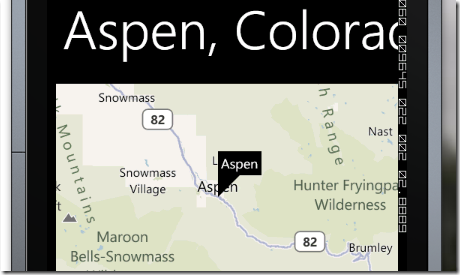
image

There’s so much more you can do with the Bing Map control. Look through the SDK documentation on MSDN. But hopefully this gets you started so your Phone applications are geo-cool.

Tuesday, October 25, 2011

Can WebForms run in ASP.Net MVC?

Let’s just jump to the answer: yes.

So, here’s my simple MVC project. I selected an “Empty” MVC project. I added my empty Controller/HomeController.cs (all the defaults, just add and close) and an empty Home/Index.cshtml view.

Is there a simpler MVC application out there? One controller, one empty view.

Then I added my /Sample.aspx. It just writes out the date. No changes to the configuration. No extra Attributes on the classes. Not a single change whatsoever. And does it run? Yes. Are their limits, possibly – but this answers the basic question I have heard developers ask.

image

Let’s take just a moment to discuss if this is a good idea.

1. I suppose it is possible that you already have built and tested WebForm assets. If they are stand-alone or independent, it might make sense to contain them in the MVC project.

Note: You always have the option to put them in a separate project and run WebForms like normal, but perhaps you are wanting to take advantage of a single-sign-on scenario.

2. If you are making the switch to MVC you might not be able to afford the development cost or time for your entire application. This might be another argument to mix technologies.

Note: In the end, this is all the ASP.Net framework. This is fundamentally why this works out of the box. However, adopting MVC is typically a pattern decision – and you should defend it.

Here’s my conclusion on this brief discussion. MVC is a fun way for developers who are sick of web development to have a new tool. It has some IoC and Unit Testing benefits, I realize. But a mixed environment can’t be a long term, ideal solution. But it’s a nice choice in the short term.

Monday, September 12, 2011

SQL’s Table Valued Custom Types

SQL Server allows you to pass complex types to Stored Procedures and User Functions as parameters. In the past, this was overcome by using CSV strings and splitting them. Now, with complex types (think, tables) we can pass whatever we need and return whatever we need back. There’s a limitation that as of 2008 you can only pass READONLY variables, but this is easily overcome by re-inserting into memory tables if the need to edit is there. Here’s the syntax to do it – just paste into SQL Management Studio to see:

Here’s the raw code: http://codepaste.net/tieqkw
 
SET NOCOUNT ON
/*
   
by: jerry
    on: 9/2011
    to: demo table types
*/

-- Create the data type
CREATE TYPE MyTableType AS TABLE
(
    Key1
int,
    Key2 int
)
GO

-- Create the proc receiving param
CREATE PROC up_MySlaveProc
    @table MyTableType READONLY
AS
    PRINT 'HELLO FROM SLAVE'
    select * from @table
GO

-- Create the proc sending param
CREATE PROC up_MyMasterProc
    /* no parameters */
AS
    PRINT 'HELLO FROM MASTER'
    declare @table MyTableType
    insert into @table values
         (1, 2)
        ,(2, 2)
        ,(3, 2)
   
exec up_MySlaveProc @table = @table
GO

-- Call the sample procs
exec up_MyMasterProc;

Tuesday, October 12, 2010

Microsoft Chart 3.5: Simple Charts

Every time I gen a chart with Microsoft’s Chart, I have to remind myself of the not-so-obvious syntax for the simple way to do things. So, since I had to do it again last weekend, I decided to put it on the blog here, where I can find it later. Three types…

Pie Chart (or SeriesChartType.Pie)

image

Find this code here. And, the chart should look a little something like this:

image

Line Chart (or SeriesChartType.Line)

image

Find the code here. The chart should look like this:

image

Stacked Bar Chart (or SeriesChartType.StackedBar)

image

Find the code here. The chart should look like this:

image

And I hope this helps you, too.

Monday, August 23, 2010

Unit Test an Async Operation

This isn’t an easy problem to solve. But it’s solvable.

image

A threading trigger is a handy thing. But I want you to notice line 15. For some reason every discussion on this topic assumes the execution of the async event cannot fire faster than the time necessary to move from line 19 to line 20. Now, let’s speak frankly, the likelihood is almost zero. However, it is not zero. Adding line 15 solves the problem without any cost.

Here’s MSDN:

ManualResetEvent allows threads to communicate with each other by signaling. Typically, this communication concerns a task which one thread must complete before other threads can proceed.

When a thread begins an activity that must complete before other threads proceed, it calls Reset to put ManualResetEvent in the non-signaled state. This thread can be thought of as controlling the ManualResetEvent. Threads that call WaitOne on the ManualResetEvent will block, awaiting the signal. When the controlling thread completes the activity, it calls Set to signal that the waiting threads can proceed. All waiting threads are released.

Once it has been signaled, ManualResetEvent remains signaled until it is manually reset. That is, calls to WaitOne return immediately.

You can control the initial state of a ManualResetEvent by passing a Boolean value to the constructor, true if the initial state is signaled and false otherwise.

ManualResetEvent can also be used with the static WaitAll and WaitAny methods.

Presto.

Get the code here.

Friday, July 2, 2010

Inheritable, compound styles in WPF4 with the BasedOn attribute

Maybe you have a base style you would like to enhance for a single or single set of controls. Using the BasedOn property, your style can inherit the settings of the “base” and expand it or override it where you want. It’s that easy.

According to MSDN, each style only supports one BasedOn value. But that does not mean you cannot have a long lineage of inherited styles. 1 –> 2 –> 3 –> 4 and so on. This really makes it nice when you have a large application.

image

Get the code here.

Shimmer and Shine with WPF4 (and, I suppose, SL)

Shine Wouldn’t it be nice if you had a Button or header or some element that, when your mouse selected it (or moved over it) it would animate a cool looking shine?

Take a look at the image on the right. The top two are just sitting there, while the bottom Button (in this case it’s really just a Border) is animating a shimmer.

The technique simply to animate the offset of a linear gradient that is tilted and applied to the border. It’s crazy easy when you see how I do it.

If there’s a trick, it’s accessing the correct gradient stop. Here’s that syntax:
(BorderBrush).(LinearGradientBrush.GradientStops)[1].(GradientStop.Offset)

The other trick is realizing that the gradient stop collection is zero-based. That might get you, too. And they are sorted based on ordinal XAML position and not Offset reference.

Here’s the code.

Wednesday, June 30, 2010

EF4 Insert, Update, Delete in a WCF method

Once you have your models created and you are ready to save, the syntax is easy – once you know the syntax. And if you want to see how we do it, the code is [here].

6a00d8341bf6c153ef0115705c165b970c-800wi[1] So, we decided to use TT files to build this for us. We’re using the STE (Self-Tracking Entities) referenced in an outside assembly, and that seems to work just fine.

To be honest, I have been quite happy with the Entity Framework – including our decision to dump Data Services and stick to entity-specific CRUD methods on the service tier.

We also noticed that cascade logic seems to be plain-ole automatic. Even when cascades are not enabled within the SQL schema, they appear to work properly as an EF operation. Cool.

To the right, that Ted – and his “Street CRUD”: Create, Read, Update and Delete. My method sample is the CUD part.